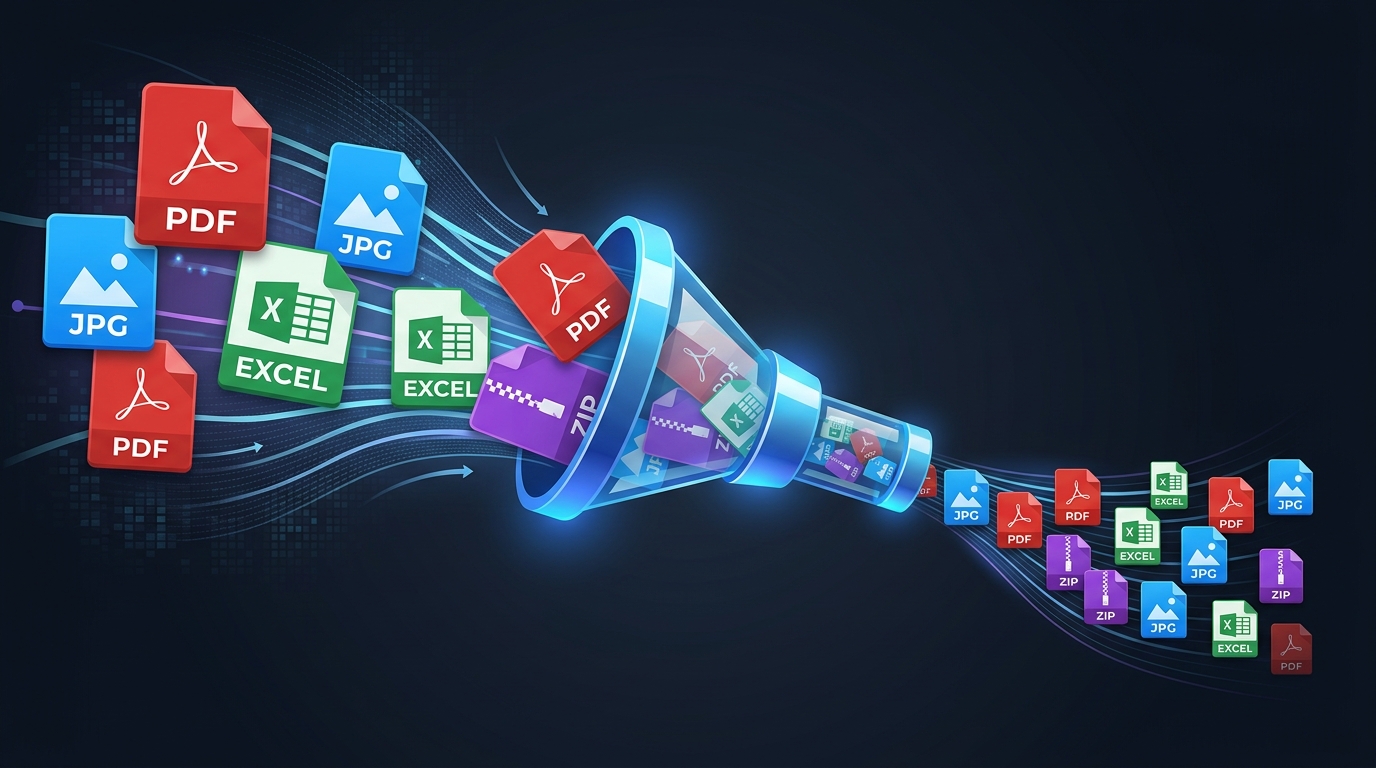
ZIP files are the universal way to bundle, compress, and share collections of files. Whether you're archiving project folders, packaging software, or compressing backups, ZIP (and its alternatives like 7z and RAR) are indispensable tools.
But not all ZIP files are created equal. A ZIP archive of text files might shrink by 80%, while a ZIP of JPEG photos barely shrinks at all. This guide explains how to reduce ZIP file size, why some files resist compression, and how to choose the best archive format and settings for maximum space savings.
ZIP file size depends primarily on what's inside: text and uncompressed data shrink dramatically (60–90%), while pre-compressed files (JPG, MP3, MP4) barely shrink at all. For maximum compression, switch from ZIP to 7z format and remove unnecessary files before archiving.
This article is part of our comprehensive guide to reducing file sizes across all major file types.
How ZIP Compression Works
ZIP compression works by finding and eliminating redundancy in data. When a file contains repeated patterns — which text, code, and structured data almost always do — the compression algorithm replaces those patterns with shorter references.
The Deflate Algorithm
Standard ZIP files use the Deflate algorithm, which combines two lossless techniques:
- LZ77 (Dictionary Compression) — Finds repeated sequences and replaces them with pointers to earlier occurrences. For example, if "the quick brown fox" appears 10 times in a document, it's stored once and referenced 9 times.
- Huffman Coding — Assigns shorter codes to frequently occurring values and longer codes to rare values. Common bytes use 3–5 bits instead of 8, saving significant space.
Why ZIP Files Can Be Larger Than Expected
Many people assume that zipping a folder will always make it dramatically smaller. In reality, ZIP compression effectiveness varies wildly depending on content:
| Content Type | Typical Compression | Why? |
|---|---|---|
| Plain text (.txt, .csv) | 70–90% reduction | Highly redundant — lots of repeated words and patterns |
| Source code (.js, .py, .html) | 60–80% reduction | Repetitive keywords, indentation, and syntax patterns |
| XML/JSON data | 70–90% reduction | Verbose tag/key structure with massive redundancy |
| Uncompressed images (BMP, TIFF) | 50–80% reduction | Raw pixel data with adjacent pixel similarity |
| Office documents (.docx, .xlsx) | 2–10% reduction | Already ZIP-compressed internally |
| JPG/PNG images | 0–3% reduction | Already compressed — almost no redundancy left |
| MP3/MP4/video | 0–1% reduction | Heavily compressed — literally cannot be made smaller |
| Existing ZIP/7z/RAR archives | 0% (may increase) | Already compressed — re-compression adds overhead |
Zipping a folder of JPG photos, MP3 songs, or MP4 videos will NOT reduce the total size significantly. These formats are already highly compressed. To reduce a ZIP of media files, you must compress the individual files first using format-specific tools (see our JPG compression guide).
Compression Algorithms Compared
Not all compression algorithms are equal. The standard ZIP Deflate algorithm is fast and universally compatible, but newer algorithms achieve better compression at the cost of speed.
| Algorithm | Used By | Compression Ratio | Speed | Memory Use |
|---|---|---|---|---|
| Deflate | ZIP, GZIP | Good | Fast | Low |
| LZMA | 7z | Excellent | Slow | High |
| LZMA2 | 7z, xz | Excellent | Moderate (multi-threaded) | High |
| Bzip2 | tar.bz2 | Very Good | Slow | Moderate |
| Zstandard (Zstd) | tar.zst | Very Good | Very Fast | Moderate |
| RAR | WinRAR | Very Good | Moderate | Moderate |
| PPMd | 7z | Best for text | Very Slow | Very High |
Methods to Reduce ZIP File Size
Method 1: Remove Unnecessary Files Before Archiving
The most impactful step. Before creating an archive, remove:
node_modules/— reinstall withnpm installon the other end.git/— usegit archiveinstead of zipping the whole repo__pycache__/,.pycfiles — regenerated automatically.DS_Store,Thumbs.db— OS-generated junk files- Build output (
dist/,build/,target/) - Log files, cache files, temporary files
- Duplicate copies of the same files
Method 2: Use 7z Format Instead of ZIP
The 7z format with LZMA2 compression typically produces archives 10–40% smaller than standard ZIP. The trade-off is slower compression speed and the need for 7-Zip or compatible software to extract.
Method 3: Increase Compression Level
Most archive tools offer compression levels from "Store" (no compression) to "Ultra" (maximum compression). Higher levels take more time but produce smaller files.
| Level | Approximate Output | Time (relative) | When to Use |
|---|---|---|---|
| Store | ~1 GB (no compression) | 1× | Bundle without compression |
| Fastest | ~600 MB | 2× | Quick backups, limited time |
| Normal | ~500 MB | 5× | Daily use, good balance |
| Maximum | ~450 MB | 10× | Sharing, permanent archives |
| Ultra | ~420 MB | 20–30× | Archival, maximum savings |
Method 4: Enable Solid Archive Mode
In solid mode, 7-Zip treats all files as one continuous data stream instead of compressing each file independently. This lets the algorithm find patterns across files, dramatically improving compression for collections of similar files.
Solid archives are especially effective for:
- Collections of similar source code files
- Multiple versions of the same document
- Log files with repetitive patterns
- Database exports with consistent schema
Method 5: Pre-Compress Individual Files
Before archiving, compress individual files using format-specific tools:
- Images: Reduce JPG quality to 75–80%, resize to needed dimensions (see our JPG compression guide)
- PDFs: Use a PDF compressor to reduce image-heavy documents (see our PDF compression guide)
- Excel files: Save as .xlsb and clear pivot caches (see our Excel size guide)
- Text/CSV: No pre-processing needed — ZIP compresses these excellently
ZIP vs 7z vs RAR: Which Should You Use?
| Feature | ZIP | 7z | RAR | tar.gz |
|---|---|---|---|---|
| Default algorithm | Deflate | LZMA2 | RAR5 | GZIP (Deflate) |
| Compression ratio | Good | Excellent | Very Good | Good |
| Speed | Fast | Slower | Moderate | Fast |
| Native OS support | ✅ Win/Mac/Linux | ❌ Needs 7-Zip | ❌ Needs WinRAR | ✅ Mac/Linux, ⚠️ Win |
| Solid archive | ❌ | ✅ | ✅ | ✅ (tar bundles) |
| Split archive | ⚠️ Limited | ✅ | ✅ | ✅ (split command) |
| Encryption | AES-256 | AES-256 | AES-256 | ❌ (use GPG) |
| Recovery records | ❌ | ❌ | ✅ (unique feature) | ❌ |
| Best for | Universal sharing | Max compression | Recovery + split | Linux/dev workflows |
Our Recommendation
- Sharing with anyone: Use ZIP. It works on every operating system without extra software.
- Maximum compression: Use 7z with LZMA2. It produces the smallest archives but requires 7-Zip to extract.
- Archival with safety: Use RAR with recovery records. If the archive file gets corrupted, recovery records allow partial repair.
- Linux/developer workflows: Use tar.gz or tar.zst. These preserve Unix file permissions and are standard in the Linux ecosystem.
The Pre-Compressed Content Problem
The most common mistake people make is expecting ZIP to shrink files that are already compressed. Here's why it doesn't work:
Compression algorithms work by finding patterns and redundancy in data. When data is already compressed, the patterns have already been eliminated — the data looks essentially random to the algorithm. Compressing random data is mathematically impossible to improve upon.
Archive Compression Tools
| Tool | Platform | Formats | Price | Key Feature |
|---|---|---|---|---|
| 7-Zip | Windows, Linux | ZIP, 7z, TAR, GZ | Free (LGPL) | Best free compression |
| WinRAR | Windows | ZIP, RAR, 7z | Paid (trial) | Recovery records |
| PeaZip | Windows, Linux | 200+ formats | Free | Format variety |
| The Unarchiver | macOS | ZIP, RAR, 7z, TAR | Free | Mac-native extraction |
| Keka | macOS | ZIP, 7z, TAR | Free | Mac-native creation |
| Built-in OS tools | All | ZIP only | Free | No install required |
Advanced Tips for Smaller Archives
- Use git archive for code repos —
git archive --format=zip HEAD -o project.zipcreates a clean archive without .git history. - Group similar files together — In solid mode, similar files next to each other compress better.
- Use dictionary size wisely — In 7-Zip, increase the dictionary size (64 MB or 128 MB) for large archives with repeated content.
- Split large archives — Use
7z a -v100m archive.7z folder/to split into 100 MB volumes for upload limits. - Exclude patterns — Use
7z a archive.7z folder/ -xr!node_modules -xr!.gitto exclude bulky directories. - Benchmark your content — Test different algorithms on a sample of your data. PPMd beats LZMA on pure text; LZMA wins on mixed content.
Frequently Asked Questions
Why is my ZIP file almost the same size as the original files?
If your files are already compressed (JPG, PNG, MP3, MP4, PDF, DOCX), ZIP can't shrink them further. Compression works by removing redundancy, and compressed files have no redundancy left. Pre-compress individual files with format-specific tools, or remove unnecessary files before archiving.
Is 7z better than ZIP?
For compression ratio, yes — 7z typically produces archives 10–40% smaller than ZIP. But ZIP has universal OS support (no software needed), while 7z requires 7-Zip or compatible software. Use ZIP for sharing, 7z for archival and maximum compression.
Can I make a ZIP file smaller by zipping it again?
No. Re-compressing a ZIP file provides zero benefit and may actually increase the file size due to archive header overhead. Already-compressed data cannot be compressed further.
What is a solid archive?
A solid archive treats all files as one continuous data stream. This lets the compression algorithm find patterns across multiple files, significantly improving compression for collections of similar files. 7z and RAR support solid mode; ZIP does not.
How do I split a ZIP file into parts?
Use 7-Zip: 7z a -v25m archive.7z folder/ creates 25 MB parts. WinRAR also supports splitting in the archive dialog. This is useful when upload portals have per-file size limits.
Related Guides
How to Reduce File Size: Methods for Every File Type
A complete guide to shrinking PDF, JPG, Excel, and ZIP files. Learn lossy vs lossless compression, metadata removal, and format-specific optimization techniques.
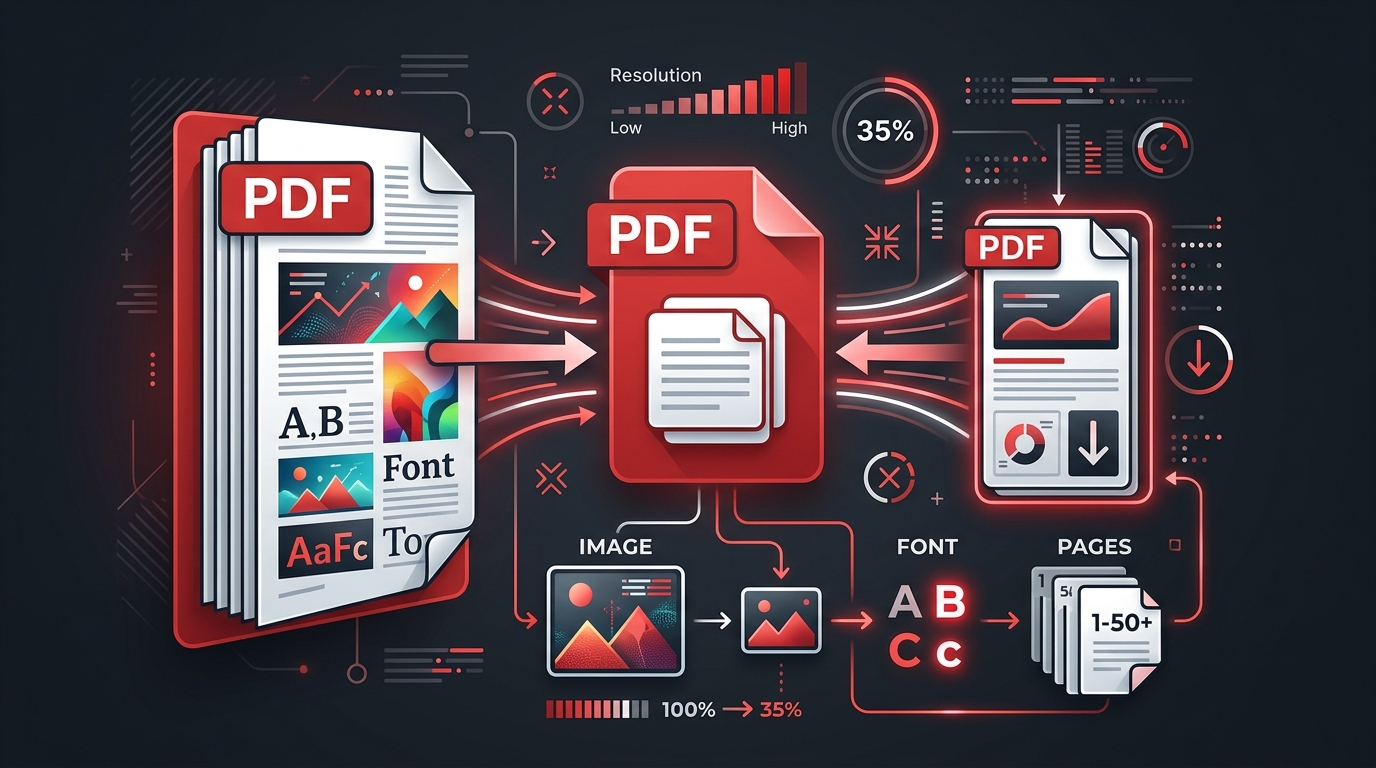
How to Reduce PDF File Size (Without Losing Quality)
Compress PDFs without visible quality loss. Master image resolution, font optimization, metadata cleanup, and find the right compression level for your documents.

How to Reduce JPG File Size
Optimize JPG images for web, email, and storage. Understand quality settings, resize strategies, EXIF removal, and when to choose lossy vs lossless compression.