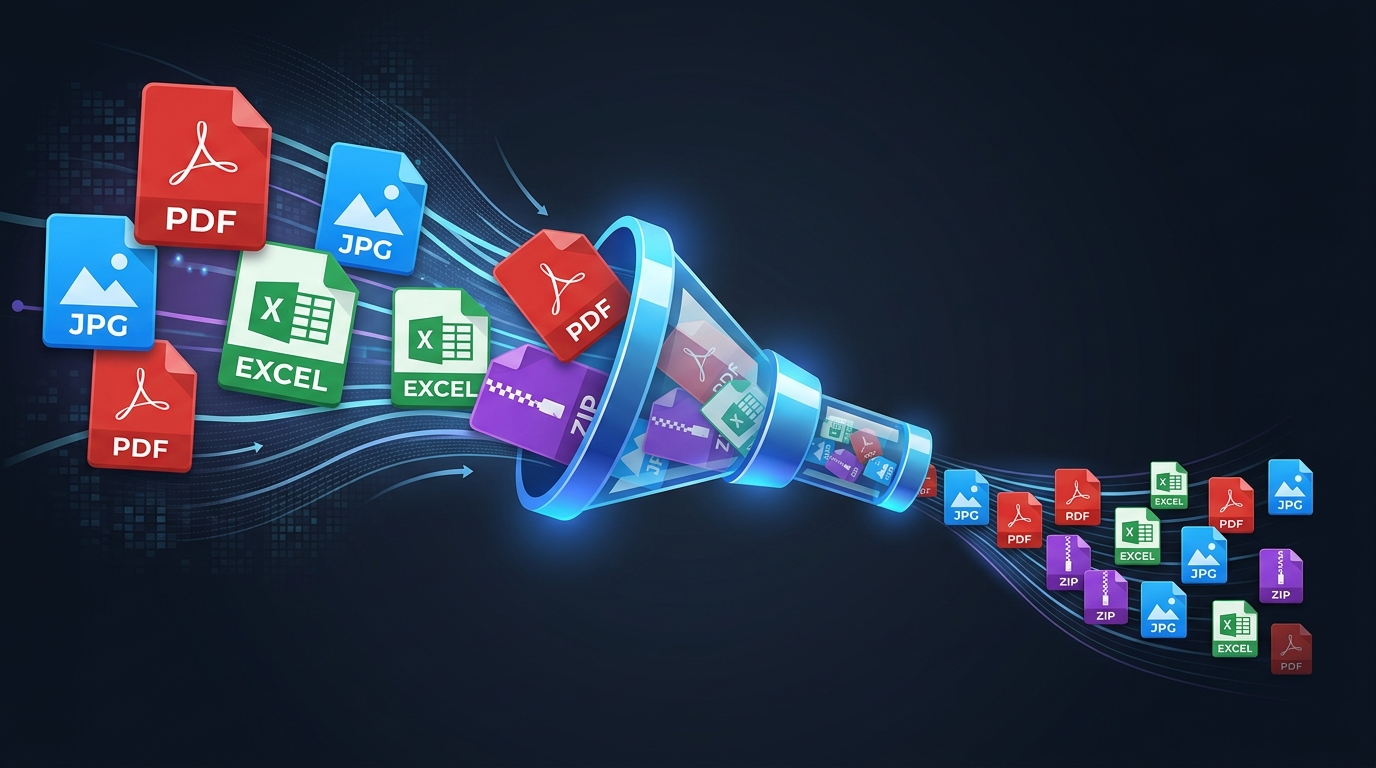
Every day, millions of people hit upload limits, watch email attachments bounce, and run out of cloud storage — all because of oversized files. Whether you are sending a PDF report to a client, uploading product photos to an e-commerce site, sharing an Excel workbook with colleagues, or archiving project files in a ZIP folder, file size matters.
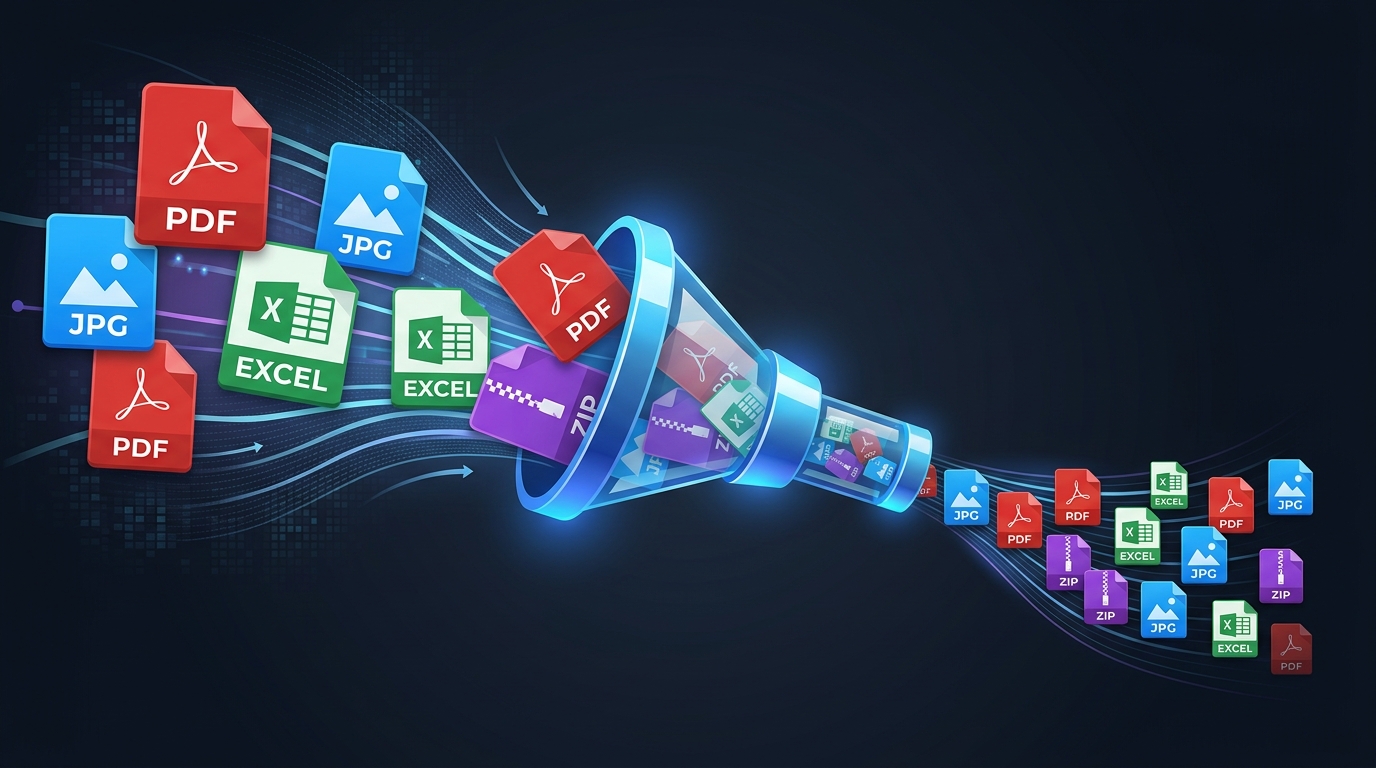
This comprehensive pillar guide covers how to reduce file size for the four most common file types: PDF, JPG, Excel, and ZIP. You will learn the difference between lossy and lossless compression, understand what makes each file type large, and discover practical methods and tools to shrink every type of file — fast and without destroying quality.
File compression reduces the number of bytes needed to store or transmit data. The right method depends on the file type: PDFs benefit from image downsampling, JPGs from quality reduction, Excel files from cache cleanup, and ZIPs from choosing the best algorithm.
What Is File Compression and Why Does File Size Matter?
File compression is the process of encoding data using fewer bits than the original representation. When you compress a file, you reduce the number of bytes it occupies on disk or in transit. Smaller files mean faster uploads, quicker email delivery, lower storage costs, and compliance with platform limits.
Common Reasons to Reduce File Size
- Email attachment limits — Gmail caps attachments at 25 MB. Outlook limits them to 20 MB. Compressing files lets you send documents within these boundaries.
- Upload portals — Job boards, visa applications, tax portals, and university submissions often enforce strict size limits (100 KB – 5 MB).
- Website performance — Smaller images and documents load faster, improving SEO rankings and user experience.
- Cloud storage costs — Reducing file sizes across thousands of files can save gigabytes of storage on Google Drive, Dropbox, or OneDrive.
- Mobile sharing — Smaller files download faster on cellular connections and consume less device storage.
Lossy vs Lossless Compression: What's the Difference?
Before diving into specific file types, you need to understand the two fundamental approaches to compression. Every file compression technique falls into one of these categories — and choosing the wrong one can either destroy quality or fail to save enough space.
Lossless Compression
Lossless compression reduces file size without discarding any data. When you decompress a losslessly compressed file, you get back the exact original — bit for bit. This method works by finding and eliminating statistical redundancy (repeated patterns, duplicate data) in the file.
- Examples: ZIP, GZIP, PNG, FLAC, PDF stream compression (FlateDecode)
- Best for: Text documents, source code, spreadsheets, archival copies, medical images
- Typical savings: 20–60% depending on content
Lossy Compression
Lossy compression achieves smaller file sizes by permanently removing some data — typically information that is least perceptible to human senses. You cannot recover the removed data after compression.
- Examples: JPEG, MP3, AAC, H.264/H.265 video, PDF image downsampling
- Best for: Photos, videos, audio, web images, screen-resolution documents
- Typical savings: 50–95% depending on quality setting
| Feature | Lossless | Lossy |
|---|---|---|
| Data preserved | 100% — exact original | Partial — some data removed |
| Typical size reduction | 20–60% | 50–95% |
| Reversible? | ✅ Yes | ❌ No |
| Quality impact | None | Minor to significant |
| Best use case | Archives, text, spreadsheets | Photos, web images, video |
| File examples | ZIP, PNG, FLAC, .xlsb | JPG, MP3, H.264 |
How to Reduce PDF File Size
PDF files are the most common document format for business, education, and government. A PDF can grow large when it contains high-resolution images, embedded fonts, form data, or layered content from design tools.
What Makes PDF Files Large?
- Embedded images — High-DPI photographs and scanned pages are the #1 cause of PDF bloat. A single 300 DPI scan can add 2–10 MB per page.
- Full font embedding — Some PDFs embed the entire font file (500 KB – 3 MB per font) when they only use a few characters.
- Metadata and annotations — Comments, revision history, XMP metadata, and ICC color profiles add hidden weight.
- Unoptimized streams — PDF object streams that lack FlateDecode compression waste space.
PDF Compression Methods
Quick PDF Compression Steps
- Open the PDF File Size Reducer tool.
- Upload your PDF (up to 50 MB).
- Choose Light for best quality, Balanced for general use, or Maximum for the smallest file.
- Click Compress PDF and wait for processing.
- Download and compare the result at 100% zoom.
How to Reduce JPG File Size
JPG (or JPEG) is the most widely used image format on the web. Cameras, scanners, and design tools produce JPGs that can range from a few hundred kilobytes to over 20 MB. Reducing JPG file size is essential for web performance, email attachments, and social media uploads.
What Makes JPG Files Large?
- High resolution — A 4000×3000 pixel photo produces a much larger file than a 1200×800 web image.
- High quality setting — JPEG quality 100 can be 5–10× larger than quality 75 with minimal visible difference.
- EXIF metadata — Camera settings, GPS coordinates, thumbnails, and color profiles can add 10–200 KB to every photo.
- Color depth — 24-bit color images contain more data than 8-bit grayscale images.
JPG Compression Methods
- Reduce quality setting — Lower the JPEG quality from 100 to 70–85 for web use. Most viewers cannot see the difference below quality 85.
- Resize dimensions — Resize images to the display size they will actually be used at. A 4000px-wide image for a 600px container wastes bytes.
- Strip EXIF data — Remove metadata like camera settings, GPS location, and color profiles that add unnecessary bytes.
- Use progressive encoding — Progressive JPGs appear to load faster and are often slightly smaller than baseline JPGs.
- Consider modern formats — WebP and AVIF offer 25–50% smaller files than JPEG at equivalent visual quality.
| Quality | Approx. File Size | Visual Difference | Best For |
|---|---|---|---|
| 100% | 8–12 MB | None (maximum quality) | Archival, professional editing |
| 90% | 3–5 MB | Imperceptible | Print, high-quality web |
| 80% | 1.5–3 MB | Minimal | Web publishing, email |
| 60% | 500 KB – 1.5 MB | Noticeable on zoom | Social media, thumbnails |
| 30% | 150–500 KB | Clearly visible artifacts | Previews, placeholder images |
How to Reduce Excel File Size
Excel workbooks can balloon from a few hundred kilobytes to 50+ MB. The causes are often invisible: pivot table caches, unused cell ranges formatted to the last row, embedded images at full resolution, and volatile formulas that recalculate constantly.
What Makes Excel Files Large?
- Pivot table caches — Every pivot table stores a snapshot of its source data. Multiple pivot tables can double or triple the file size.
- Embedded images — Screenshots, logos, and charts pasted at original resolution inflate the workbook.
- Excessive formatting — Conditional formatting, cell borders, colors, and styles applied to entire columns/rows create unnecessary overhead.
- Unused ranges — Data deleted from cells doesn't always free the space. Excel remembers the "used range" even if cells are empty.
- External links and named ranges — Broken links to other workbooks and orphaned named ranges add hidden weight.
Excel File Size Reduction Steps
- Clear pivot table caches — Right-click each pivot table → PivotTable Options → Data tab → set "Number of items to retain per field" to
None. - Compress images — Select any image → Format → Compress Pictures → choose 150 or 96 DPI.
- Delete unused rows/columns — Select unused rows below your data → Delete. Then save.
- Remove excess formatting — Use Home → Clear → Clear Formats on empty areas.
- Save as .xlsb — Binary format (.xlsb) is 30–50% smaller than .xlsx with identical data.
- Remove unused sheets and named ranges — Delete blank sheets and clean up the Name Manager.
How to Reduce ZIP File Size
ZIP is the universal archive format supported natively by Windows, macOS, and Linux. However, many people don't realize that ZIPs can vary dramatically in compression ratio depending on the algorithm used, the compression level, and — most importantly — what's inside the archive.
What Affects ZIP File Size?
- Content type — Text files, CSVs, and uncompressed data compress extremely well (60–90% reduction). JPGs, MP3s, and videos are already compressed and barely shrink further.
- Compression algorithm — Standard ZIP uses Deflate. 7z uses LZMA/LZMA2. RAR uses a proprietary algorithm. Each performs differently.
- Compression level — Higher levels take more time but produce smaller files. The difference between "Normal" and "Ultra" can be 10–20%.
- Redundant files — Temporary files, build artifacts, cache files, and duplicate copies waste archive space.
ZIP Optimization Methods
- Remove unnecessary files first — Delete temp files, caches,
.DS_Store,Thumbs.db,node_modules, and build output before archiving. - Use 7z format instead of ZIP — 7z with LZMA2 compression produces archives 10–40% smaller than standard ZIP with Deflate.
- Pre-compress individual files — Compress images and PDFs before adding them to the archive. Pre-compressed content shrinks the total archive size.
- Use solid compression — In 7-Zip, enable "solid archive" mode. This treats all files as one continuous data stream, improving redundancy detection across files.
- Split large archives — If total size exceeds an upload limit, split the archive into parts rather than trying to compress it further.
| Feature | ZIP (Deflate) | 7z (LZMA2) | RAR |
|---|---|---|---|
| Compression ratio | Good | Excellent | Very Good |
| Speed | Fast | Slower | Moderate |
| Native OS support | ✅ All platforms | ❌ Requires 7-Zip | ❌ Requires WinRAR |
| Solid archive | ❌ No | ✅ Yes | ✅ Yes |
| Encryption | AES-256 (modern) | AES-256 | AES-128/256 |
| Best for | Compatibility | Maximum compression | Recovery records |
File Type Compression Comparison
Not all files compress equally. The table below compares what to expect when compressing each major file type.
| File Type | Common Size | Compression Method | Expected Reduction | Quality Risk |
|---|---|---|---|---|
| PDF (image-heavy) | 5–50 MB | Image downsample + re-encode | 50–80% | Low to moderate |
| PDF (text-only) | 50–500 KB | Stream compression + font subset | 5–25% | None |
| JPG | 2–15 MB | Quality reduction + resize | 60–90% | Low at quality 75+ |
| Excel | 1–50 MB | Cache clear + .xlsb + cleanup | 30–70% | None |
| ZIP (text content) | Varies | 7z LZMA2 + solid archive | 60–90% | None |
| ZIP (media content) | Varies | Pre-compress individual files | 2–10% | None |
Best Practices for File Size Reduction
Regardless of the file type you are working with, these universal best practices will help you achieve the best compression results:
- Always keep an uncompressed backup — Compress copies, not originals. Lossy compression cannot be undone.
- Choose the right quality level for the use case — A social media thumbnail doesn't need print-quality images. Match compression to the viewing context.
- Remove unnecessary content first — Delete unused pages, blank sheets, temporary files, and metadata before compressing. Less content = less to compress.
- Compress at the source — Optimize images before embedding them in PDFs or Excel workbooks. Compressing the container alone is less effective.
- Use format-specific tools — Generic compression (ZIP) is less effective than format-specific optimization (PDF compressor, image optimizer).
- Verify after compression — Always check the compressed file at 100% zoom. Look for blurry text, JPEG artifacts, broken layouts, and missing data.
- Consider modern formats — WebP instead of JPG, .xlsb instead of .xlsx, 7z instead of ZIP. Newer formats offer better compression.
For PDFs specifically, use our free PDF File Size Reducer tool. It runs entirely in your browser using WebAssembly — your file never leaves your device. Choose between Light, Balanced, and Maximum compression to find the perfect balance of quality and size.
Frequently Asked Questions
What is the fastest way to reduce file size?
The fastest method depends on the file type. For PDFs, use an online compressor like PDF File Size Reducer. For images, reduce quality to 75–80% and resize to the intended display size. For Excel, save as .xlsb format. For archives, use 7z format with LZMA2 compression.
Does reducing file size reduce quality?
It depends on the method. Lossless compression (ZIP, .xlsb, font subsetting) preserves 100% quality. Lossy compression (JPEG quality reduction, PDF image downsampling) removes some data. For most screen-viewing purposes, quality 75–85 is visually indistinguishable from quality 100.
Can I compress a file that's already compressed?
Generally no. Files that are already compressed (JPGs, MP3s, ZIPs) won't shrink significantly when compressed again. In some cases, re-compression can actually increase the file size. For best results, compress at the source before archiving.
What's the difference between compressing and zipping a file?
Zipping creates an archive that uses lossless compression (Deflate algorithm). "Compressing" is a broader term that can include lossy methods like JPEG quality reduction or PDF image downsampling. ZIP compression works well for text and uncompressed data but barely shrinks files that are already compressed (like JPGs).
How small can I make a PDF file?
The minimum depends on the content. A text-only PDF with 10 pages may compress to 50–200 KB. An image-heavy PDF with 20 scanned pages might only reach 500 KB – 2 MB at maximum compression. No tool can guarantee a specific target size because it depends on the content inside.
Is it safe to compress files online?
Safety depends on the tool. Services that upload your file to a server introduce privacy risk. Browser-based tools like PDF File Size Reducer process files locally on your device — the file never leaves your computer. Always check a tool's privacy policy before uploading sensitive documents.
Continue Reading
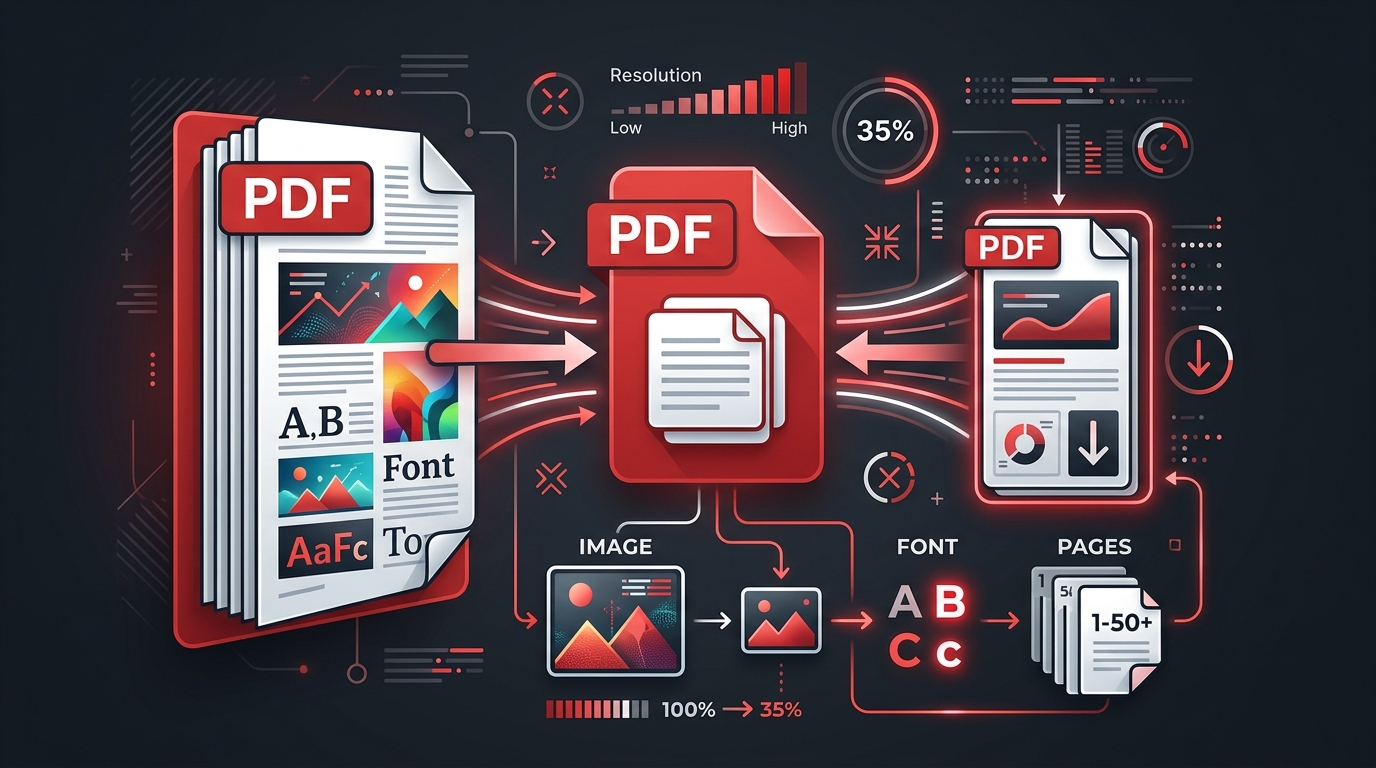
How to Reduce PDF File Size (Without Losing Quality)
Compress PDFs without visible quality loss. Master image resolution, font optimization, metadata cleanup, and find the right compression level for your documents.
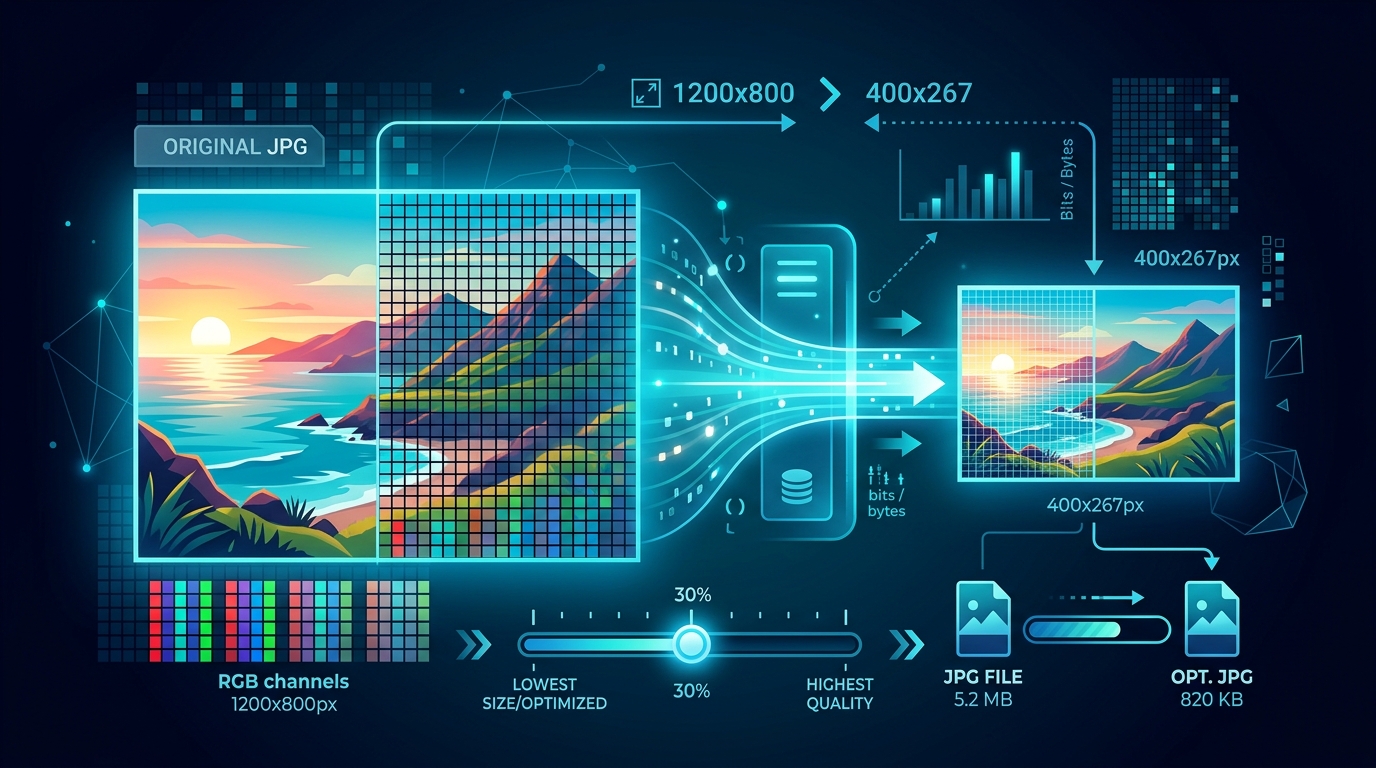
How to Reduce JPG File Size
Optimize JPG images for web, email, and storage. Understand quality settings, resize strategies, EXIF removal, and when to choose lossy vs lossless compression.
How to Reduce Excel File Size
Shrink bloated Excel workbooks fast. Learn to clear pivot caches, compress images, trim unused ranges, switch to .xlsb, and optimize formulas for smaller files.
How to Reduce ZIP File Size
Make smaller archives with better compression. Compare ZIP, 7z, and RAR algorithms, remove redundant files, and learn why pre-compressed content resists further shrinking.