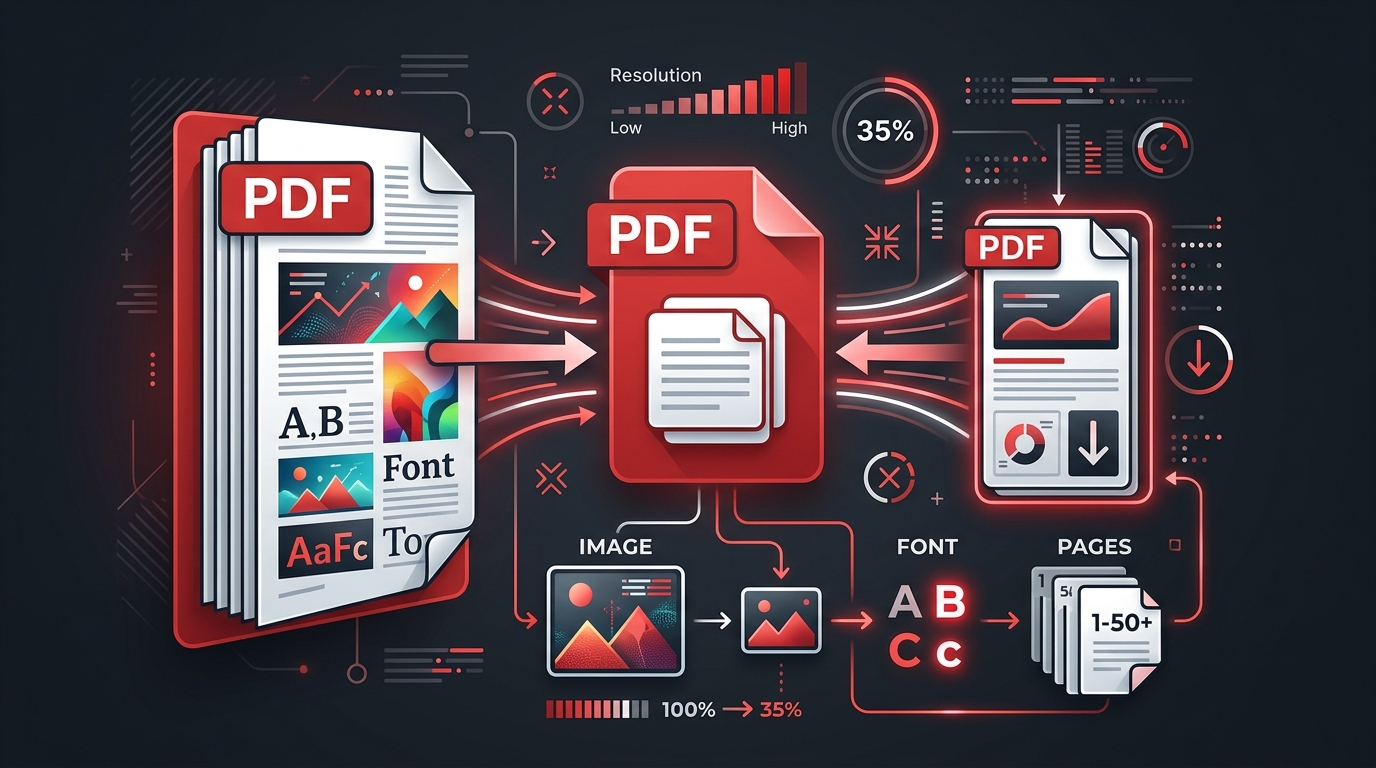
PDF files are the backbone of professional document exchange. From invoices and contracts to research papers and government forms, PDFs are everywhere. But they can grow surprisingly large — a 10-page scanned document can easily exceed 20 MB, making it impossible to email or upload to portals with strict size limits.
This guide shows you exactly how to reduce PDF file size without losing quality. You'll learn what makes PDFs large, how compression works under the hood, and how to use the right tools and settings for your specific use case.
PDF compression primarily targets embedded images. A PDF with high-resolution scanned pages (300+ DPI) can shrink by 60–80% with Balanced compression. Text-only PDFs with no images may only shrink by 5–15%.
This article is part of our comprehensive guide to reducing file sizes across all file types.
Why Are PDF Files So Large?
A PDF is not just text on a page. It's a container format that can hold images, vector graphics, fonts, form fields, JavaScript, multimedia, and metadata — all wrapped in a structured object tree. Understanding what makes a PDF large is the first step to making it smaller.
The Top 5 Causes of PDF Bloat
- High-resolution embedded images (60–85% of size) — This is the #1 culprit. Scanners produce 300–1200 DPI images. A single A4 page scanned at 300 DPI generates a ~25 MB uncompressed TIFF image. Even with JPEG encoding inside the PDF, each page can be 1–5 MB.
- Full font embedding (5–15% of size) — When a PDF embeds the complete OpenType or TrueType font file instead of just the subset of characters used, each font can add 500 KB to 3 MB.
- Vector graphics and illustrations — Complex diagrams, CAD drawings, and detailed charts add path data that inflates the file.
- Metadata and annotations — XMP metadata, ICC color profiles, comments, revision history, bookmarks, and form field data contribute to the total size.
- Uncompressed data streams — Older PDF generators sometimes skip FlateDecode compression on text and object streams, wasting space on compressible data.
Anatomy of a PDF File
Understanding PDF structure helps you see where compression opportunities exist. A PDF file consists of four main sections:
When you edit a PDF, many tools append changes to the end rather than rewriting the file — this is called incremental saving. Over time, this creates dead objects (deleted pages, replaced images) that still take up space. A good PDF compressor removes these dead objects during rewrite.
PDF Compression Methods Explained
1. Image Downsampling
The most impactful method. Downsampling reduces the resolution (DPI) of embedded images. A 300 DPI image downsampled to 150 DPI contains 75% fewer pixels, dramatically reducing size.
| DPI Setting | Pixels per A4 Page | Best For | Quality Impact |
|---|---|---|---|
| 300 DPI | ~8.7 million | Professional printing | Maximum quality |
| 200 DPI (Light) | ~3.9 million | High-quality screen viewing | Minimal visible change |
| 150 DPI (Balanced) | ~2.2 million | Email, web, general sharing | Clear on screen, soft in print |
| 72 DPI (Maximum) | ~500 thousand | Screen-only viewing, previews | Visibly softer, especially text |
2. Image Re-encoding
After downsampling, images are re-encoded with optimized JPEG or JPEG2000 settings. The encoder adjusts the quality parameter to balance file size and visual fidelity. Some compressors also convert lossless PNG images to lossy JPEG when the image contains photographic content.
3. Font Subsetting
Instead of embedding the entire font file (which may contain 10,000+ glyphs), font subsetting keeps only the characters actually used in the document. A font that uses 200 characters out of 10,000 can be reduced by 98%.
4. Stream Compression (FlateDecode)
PDF object streams that contain text, drawing commands, and structural data can be compressed with FlateDecode (zlib/Deflate). This is lossless compression that typically saves 30–60% on uncompressed streams.
5. Object Cleanup
Removing dead objects, deduplicating identical resources (shared images or fonts), stripping metadata, and linearizing the file structure all contribute to size reduction.
Step-by-Step: Compress a PDF with Our Free Tool
Your PDF never leaves your device. The compression runs entirely in a WebAssembly worker inside your browser. No files are uploaded to any server.
Compression Levels Explained
| Level | Image Target | Typical Reduction | Best Use Case | Quality Trade-off |
|---|---|---|---|---|
| Light | ~200 DPI | 20–40% | Professional reports, print drafts, portfolios | Smallest visible change |
| Balanced | ~150 DPI | 40–65% | Email, invoices, forms, coursework | Clear on screen |
| Maximum | ~72 DPI | 60–85% | Strict upload limits, mobile, previews | Softer images |
Start with Light compression. If the result is still too large, try Balanced. Only use Maximum when you must meet a strict size limit and can tolerate softer images. Always review the compressed PDF at 100% zoom before sharing it.
Compressing Scanned PDFs
Scanned PDFs are the best candidates for compression because they consist almost entirely of raster images — one large image per page. A 20-page scanned document at 300 DPI can easily be 30–50 MB.
Why Scanned PDFs Compress So Well
- Each page is a full-page image (2480 × 3508 pixels at 300 DPI for A4)
- Downsampling to 150 DPI reduces pixel count by 75% per page
- JPEG re-encoding with quality 60–80 further reduces data per pixel
- Combined effect: 60–85% total reduction is typical
Important Considerations
- OCR text layers — If the scanned PDF has OCR (searchable text), verify that the text layer remains intact after compression. Most compressors preserve OCR layers.
- Fine print and signatures — Check small text, legal disclaimers, and signatures at 100% zoom after compression. Maximum compression may soften these elements.
- Color vs. grayscale — If the scanned document is mostly black text on white paper, converting to grayscale before scanning can cut size by 60% before any compression.
Advanced PDF Optimization Techniques
Pre-compress Images Before Embedding
If you're creating a PDF from scratch (e.g., in InDesign, Word, or LaTeX), optimize your source images before embedding them. Resize photos to the intended print/screen size and use JPEG quality 80 for photographs. This produces a smaller PDF than trying to compress it after creation.
Use PDF/A for Archival (but Know the Cost)
PDF/A is a standard for long-term archival. It requires all fonts to be embedded and prohibits external references. PDF/A files are often larger than standard PDFs because of full font embedding. Compress a regular PDF for sharing, and keep the PDF/A for archival only.
Split Large PDFs
If compression can't meet a portal's size limit, split the PDF into smaller parts. Send pages 1–10 and pages 11–20 as separate files. Many portals accept multiple file uploads.
Remove Pages You Don't Need
Delete cover pages, blank pages, and appendices before compression. Fewer pages = less to compress = smaller output.
PDF Compression Tools Compared
| Tool | Type | Free? | Privacy | Strength |
|---|---|---|---|---|
| PDF File Size Reducer | Browser (WebAssembly) | ✅ Fully free | ✅ Local processing | 3 levels, no upload |
| Adobe Acrobat Pro | Desktop | ❌ Paid subscription | ✅ Local | Advanced options |
| Smallpdf | Online | ⚠️ Limited free | ⚠️ Uploads to server | Easy interface |
| iLovePDF | Online | ⚠️ Limited free | ⚠️ Uploads to server | Multiple tools |
| Ghostscript (CLI) | Command line | ✅ Open source | ✅ Local | Maximum control |
Frequently Asked Questions
Can I reduce PDF file size without losing quality?
Yes, to a degree. Light compression uses ~200 DPI downsampling, which produces minimal visible change on screen. For zero quality loss, you can strip metadata, subset fonts, and apply lossless stream compression — but the size reduction will be smaller (5–25%).
Why is my PDF not getting smaller after compression?
If a PDF is already optimized (compressed images, subsetted fonts, no metadata), there's little left to compress. Text-only PDFs and digitally generated documents often resist further compression because they contain minimal removable data.
What DPI should I use for email PDFs?
150 DPI (Balanced compression) is ideal for email. It produces clear, readable documents at screen resolution while significantly reducing file size. Use 72 DPI (Maximum) only when file size is more important than image clarity.
Is compressing a PDF safe?
Yes, when using a trusted tool. Our PDF File Size Reducer processes your file entirely in the browser — it never leaves your device. Always keep a backup of the original file before compressing.
Can I compress a password-protected PDF?
Most compression tools require you to unlock the PDF first. If the PDF has an owner password (which restricts editing but allows viewing), some tools can still compress it. If the PDF has a user password (which prevents opening), you must enter the password before compression.
Related Guides
How to Reduce File Size: Methods for Every File Type
A complete guide to shrinking PDF, JPG, Excel, and ZIP files. Learn lossy vs lossless compression, metadata removal, and format-specific optimization techniques.
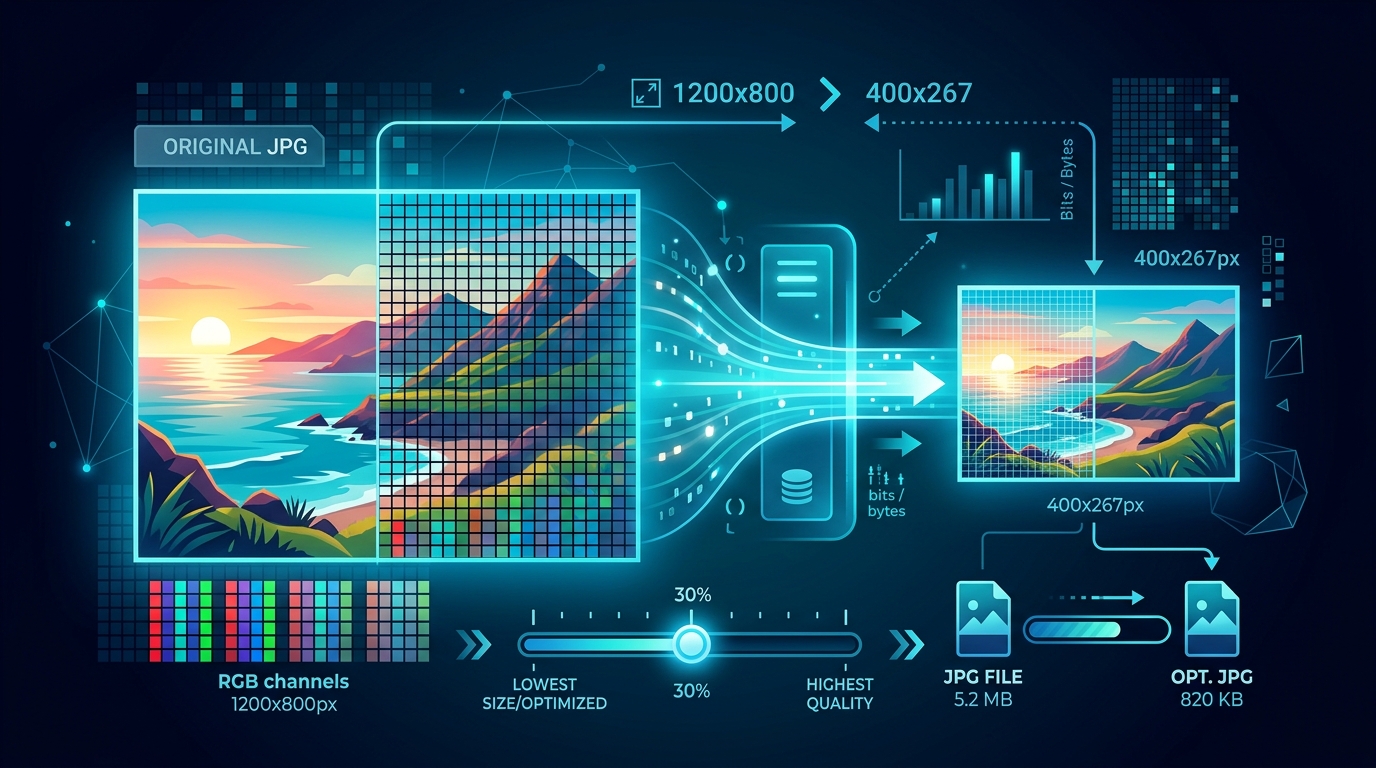
How to Reduce JPG File Size
Optimize JPG images for web, email, and storage. Understand quality settings, resize strategies, EXIF removal, and when to choose lossy vs lossless compression.
How to Reduce Excel File Size
Shrink bloated Excel workbooks fast. Learn to clear pivot caches, compress images, trim unused ranges, switch to .xlsb, and optimize formulas for smaller files.